
DNS records control where your domain points for websites, email services, and other online applications. You can manage your DNS records directly from the Awesome Sites Client Area. Before making changes, ensure you have the DNS settings provided by your hosting provider, email provider, or third-party service.
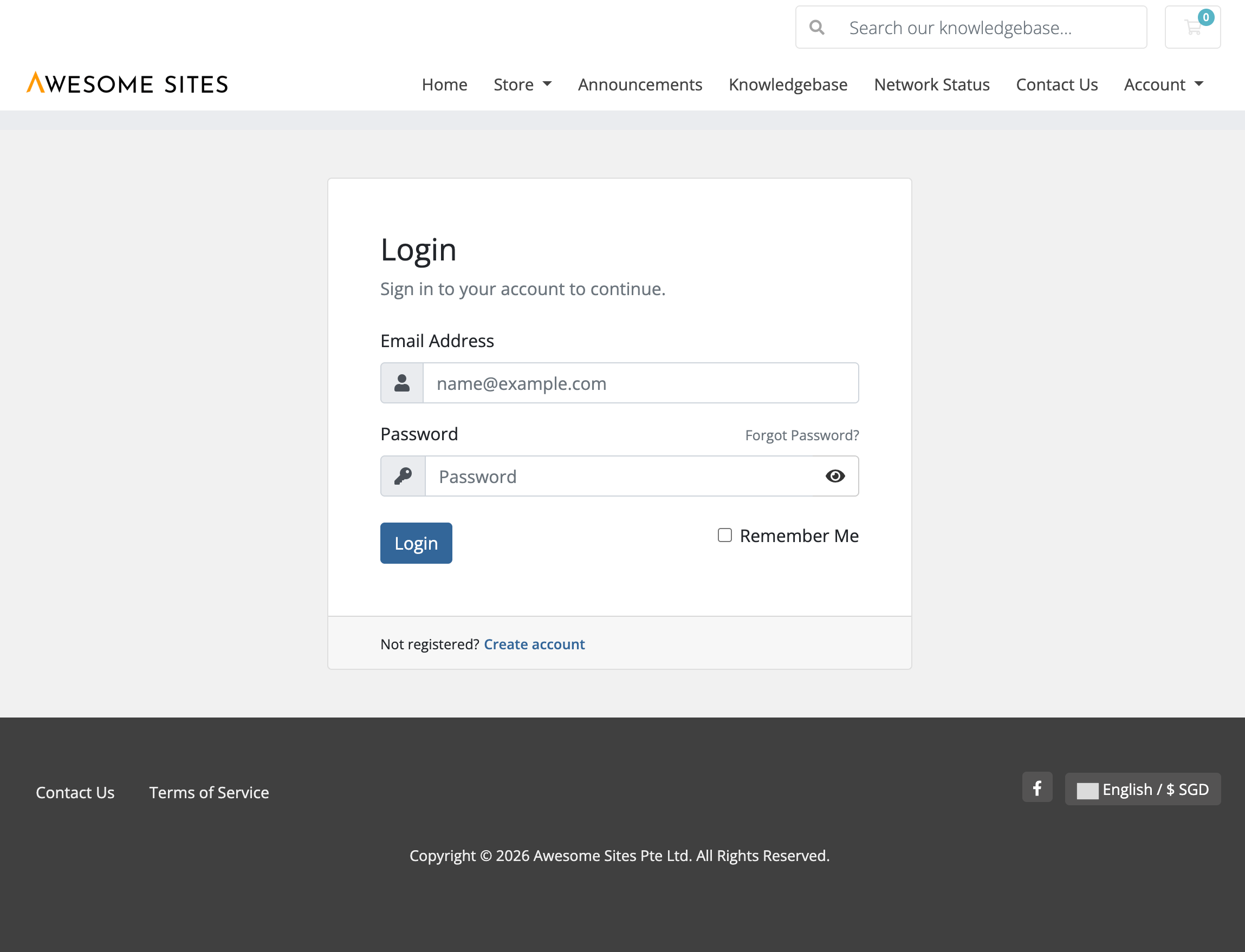
Step 1: Log in to the Client Area
Visit the client portal: https://awesomesites.com.sg/customer Log in using your email address and password.
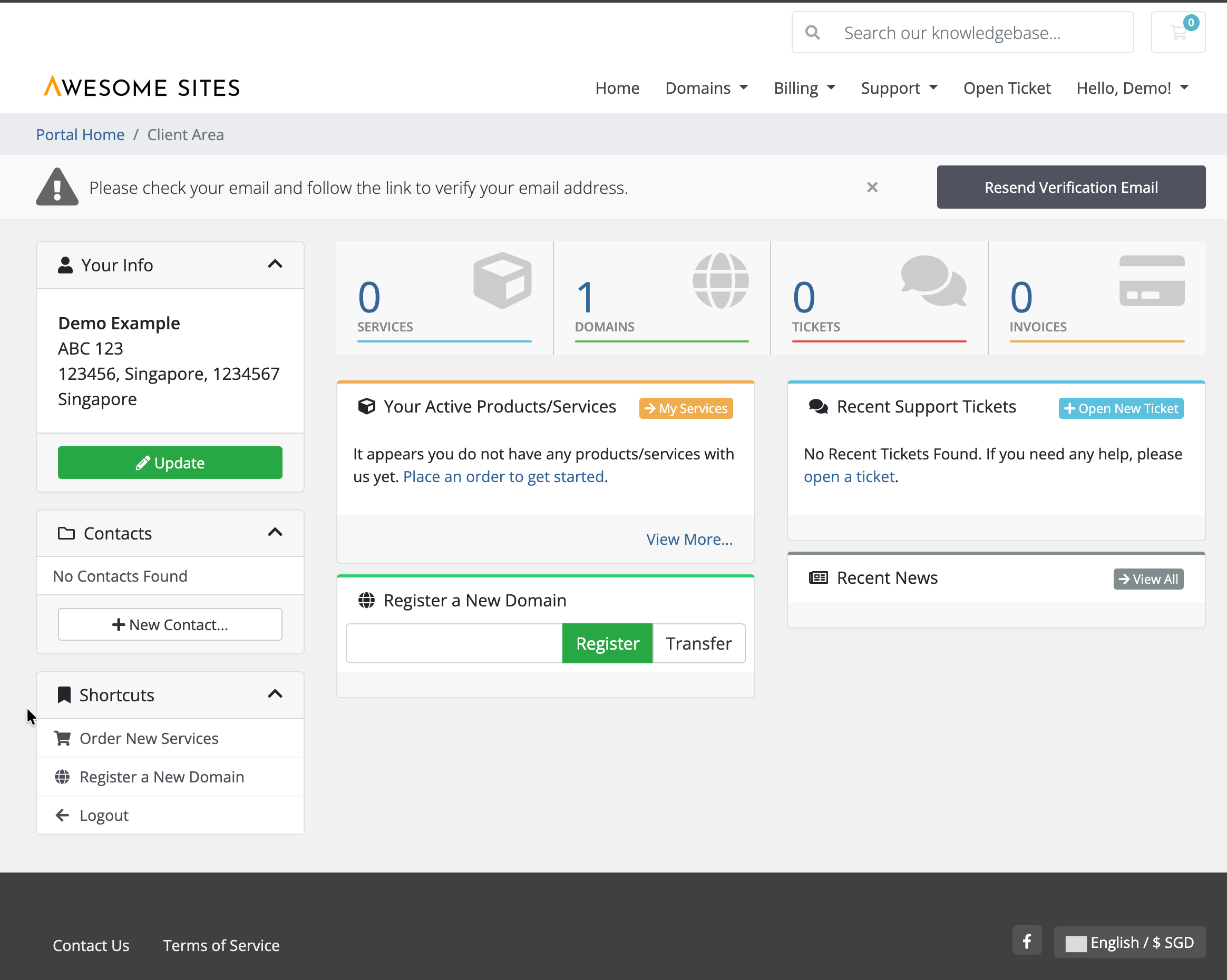
Step 2: Open My Domains
From the top navigation menu, click Domains and select My Domains. A list of your registered domains will be displayed.
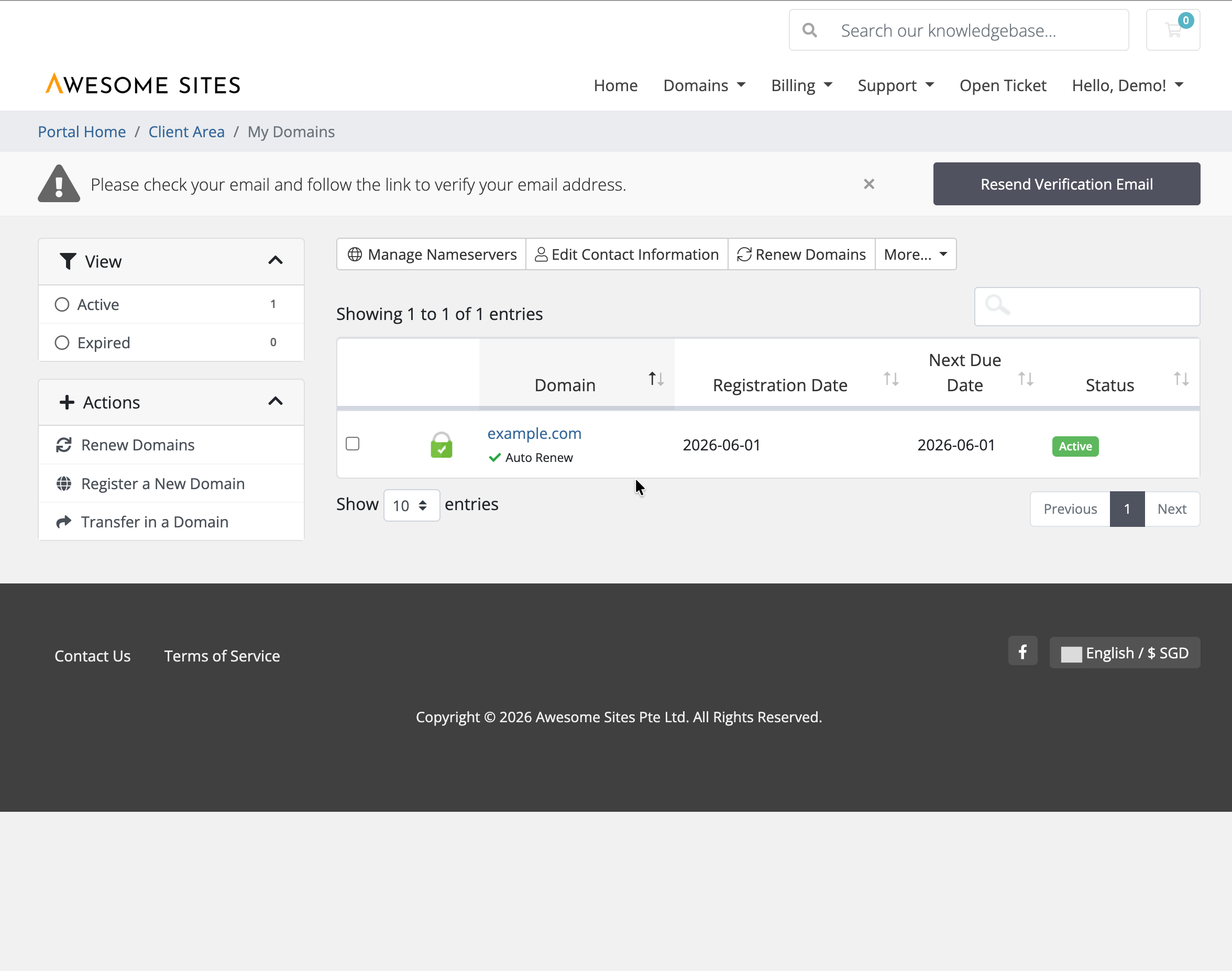
Step 3: Select Your Domain
Click on the domain name you wish to manage. This will open the Domain Management page for the selected domain.
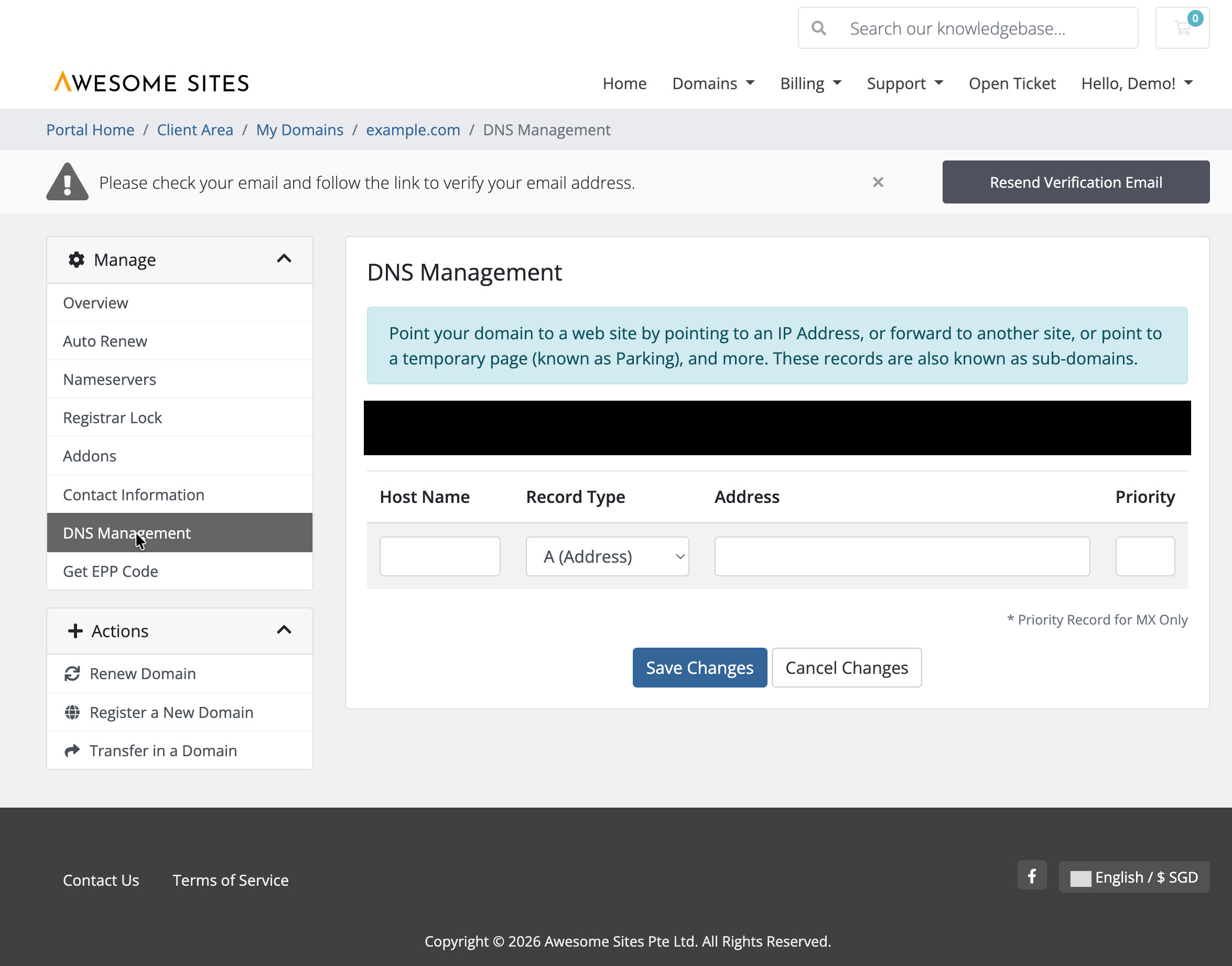
Step 4: Open DNS Management
From the left-hand menu, click DNS Management. You will be taken to the DNS Management page where you can add, edit, or remove DNS records.
Step 5: Add or Edit a DNS Record
Fill in the required fields: Host Name Examples:
- Leave blank or use @ for the root domain
- www for the website alias
- mail for a mail server
- blog for a blog subdomain
Record Type Select the appropriate record type:
- A (Address) – Points a domain to an IPv4 address
- CNAME – Points a hostname to another hostname
- MX – Routes email to a mail server
- TXT – Used for verification, SPF, DKIM, and other text records
Address Enter the value provided by your service provider. Examples:
- A Record: 203.0.113.10
- CNAME Record: target.example.com
- TXT Record: google-site-verification=xxxxxxxx
Priority This field is only required for MX records. Example:
- 10 = Primary mail server
- 20 = Secondary mail server
[Insert Screenshot: DNS Record Editor]
Step 6: Save Changes
After entering the record details, click Save Changes. Your DNS records will be updated immediately. However, DNS changes may take up to 24 to 48 hours to propagate worldwide.
Common DNS Record Examples
Point a Website to a Server Host Name: @
Record Type: A
Address: 203.0.113.10
Create a WWW Alias Host Name: www
Record Type: CNAME
Address: example.com
Google Verification Record Host Name: @
Record Type: TXT
Address: google-site-verification=xxxxxxxx
Microsoft 365 Mail Setup Host Name: @
Record Type: MX
Address: yourdomain-com.mail.protection.outlook.com
Priority: 0
Important Notes
- Incorrect DNS changes can affect your website or email service.
- Always verify the record values before saving.
- DNS propagation may take up to 48 hours.
- Some DNS changes may become active much sooner depending on your ISP and DNS cache.
Need Help?
If you are unsure which DNS records to create or modify, please open a support ticket and provide the DNS settings supplied by your hosting, email, or application provider. Our support team will be happy to assist.
